


ExpressCheck Installation Guide - Aloha
Version 2.01 – November 06, 2025

1 Prerequisites
The following are the prerequisites for installing ExpressCheck:
- Aloha Interface Terminal Licensing (If not Licensed and Programmed FOH will be in constant loop)
- Aloha Transaction Gateway software Installed
- POS Version 15.1 or higher
- .net 4.6.2 or higher
- Windows 7 POS Ready 2009 or higher
Firewall Whitelisting:
208.83.78.41 (www.vigilix.net)
208.83.78.43 (agent.vigilix.net)
208.87.85.52 (download.vigilix.net)
208.87.85.53 (initialdownload.vigilix.net)
208.83.78.45 (rc.vigilix.net) SC Gateway - Primary
208.83.78.46 (rc2.vigilix.net) SC Gateway
52.165.31.120 (rcia.vigilix.net) Iowa Gateway 52.88.11.253 (rcor.vigilix.net) Oregon Gateway
18.211.25.51 (rcva.vigilix.net) Virginia Gateway
xupdatesprod.blob.core.windows.net
citycheers.blob.core.windows.net
x-portal.citycheers.com
x-uapi.citycheers.com
cloud-brain-prod.azurewebsites.net
signalr.net
2 Configure the POS
In Aloha Manager:
2.1 Configure Interface Server & Terminal:
A. Open Aloha Manager. Login with user that has programming permissions
B. Go to Maintenance > Hardware > Terminal
1. Add new terminal
i. Terminal Number: 980
ii. Name ExpressCheckSVR
iii. Model: Clone
iv. Function: Interface Server
v. Revenue Center: Restaurant
vi. Click Save
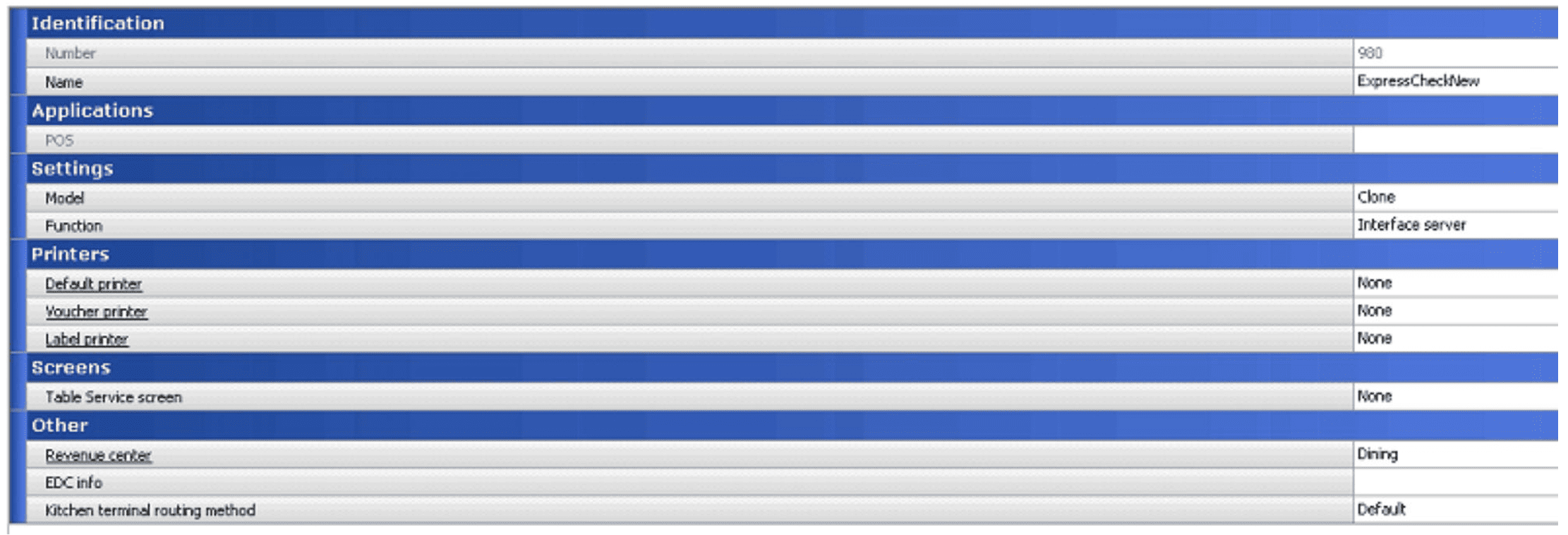
2. Add a second new terminal
i. Terminal Number: 981
ii. EC InterfaceTrm
iii. Model: Clone iv
iv. Function: Interface Terminal
v. Enable: Allow Order Entry (only 15.1)
vi. Click Save
vii. Revenue Center
viii. Click Save & Close

2.2 Configure Tender
A. Go to Maintenance > Payments > Tenders
1. Create a new Generic Tender
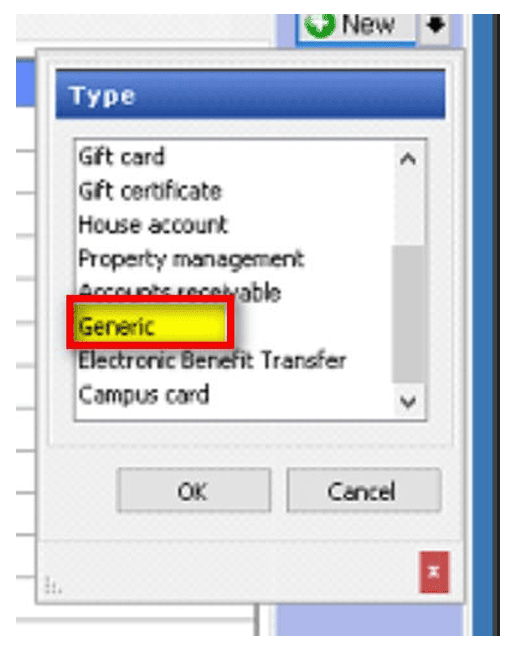
i. Name it ExpressChk (User Exact due to Character limit)
ii. Set ID above any existing Tenders ie: 50 (Make note of Tener ID for EC Settings)
iii. Default Amount Behavior: Ask for amount
iv. Set to active
v. Close check upon payment
vi. Enable Allow tips
vii. Maximum tip 100%
2. Click Save & Close
2.3 Configure Comp
A. Go to Maintenance > Payments > Comps
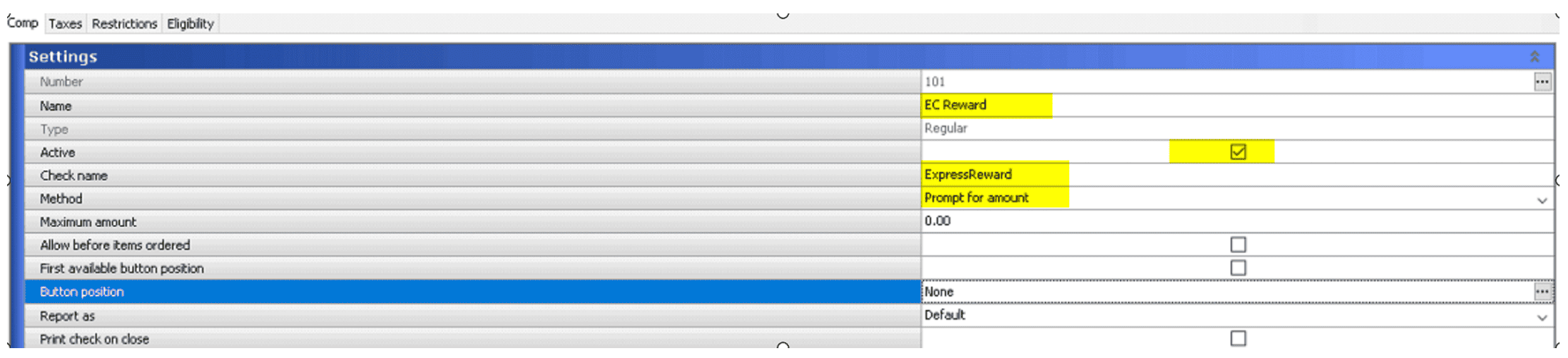
1. Create new Comp
i. Set ID to 101 (Make Note of ID for Skynet EC Settings)
ii. Name it ExpressReward
iii. Enable: Active
iv. Check Name: ExpressReward
v. Method: Prompt for Amount
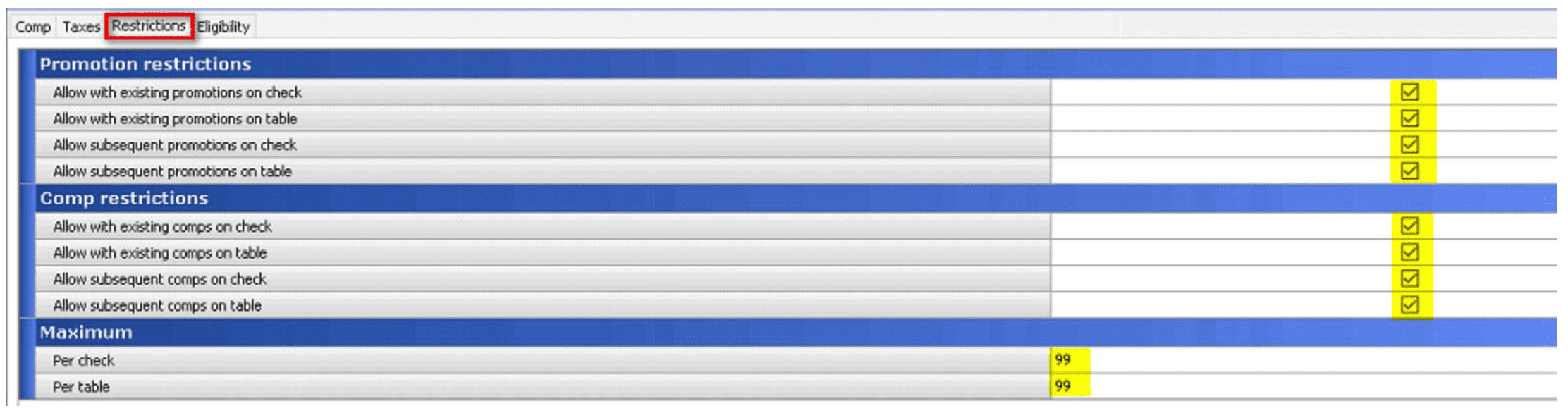
2. Restriction Tab
i. Enable all Promotion Restrictions
ii. Enable all Comp Restrictions
iii. Set Maximum for Per Check and Per Table to 99
iv. Click Save & Close
2.4 Configure the EC Fee menu item And Category
A. Go to Maintenance > Menu > Categories
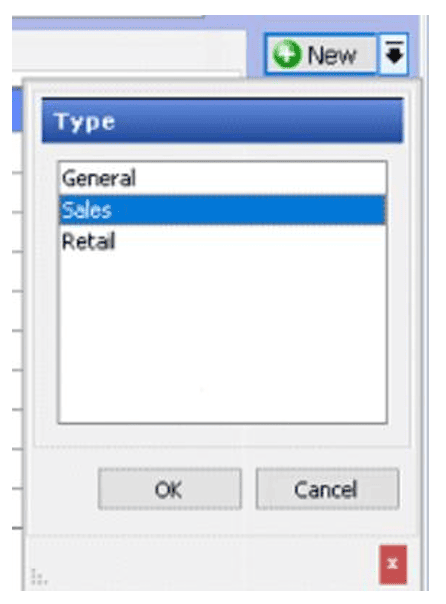
1. New > Sales
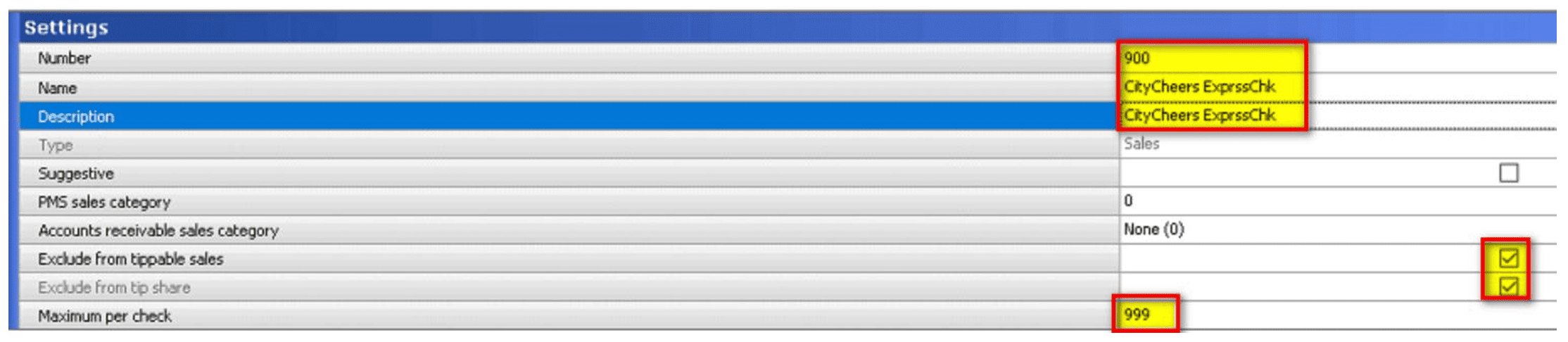
i. Set Number to 900 or highest number available
ii. Name: CityCheers ExprssChk
iii. Description: CityCheers ExprssChk
iv. Enable: Exclude from Tippable Sales
v. Enable: Exclude from Tip Share
vi. Max Per Check:999
2. Click Save & Close
B. Go to Maintenance > Menu > Items
1. New Item
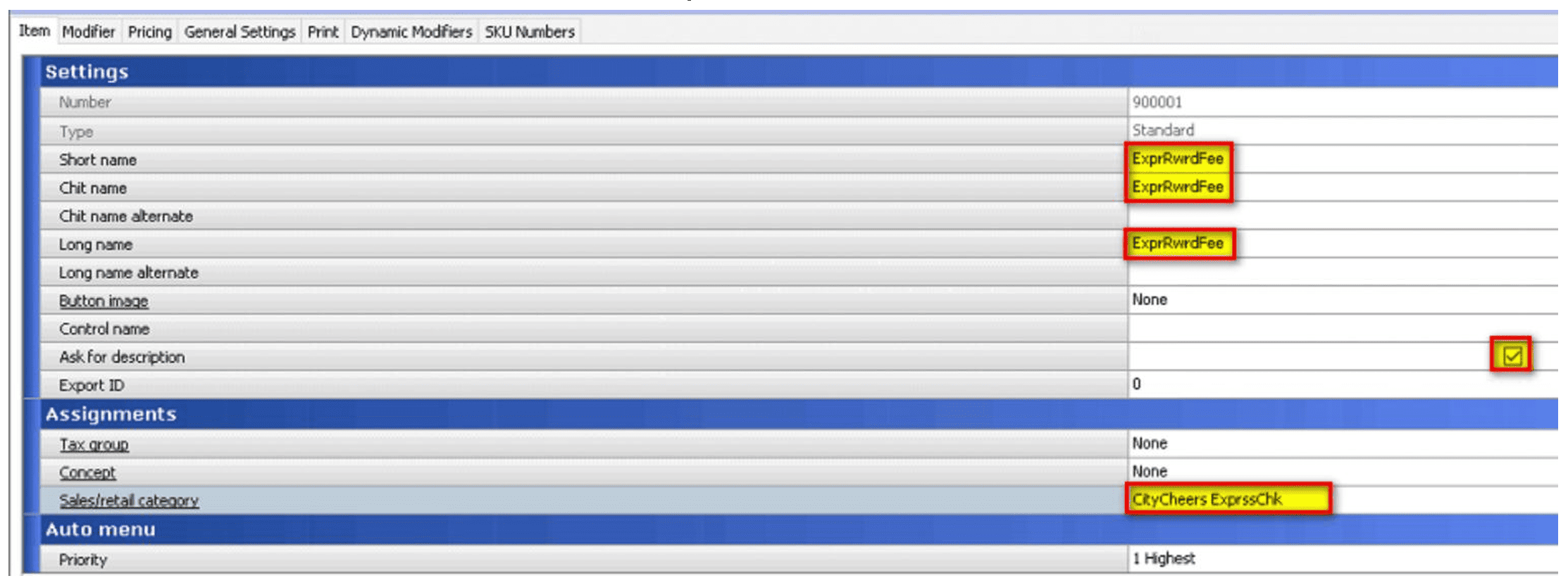
i. Set Item ID to 900001 outside of the range of any other Items
ii. Name: ExprRwrdFee
iii. Chit Name: ExprRwrdFee
iv. Long Name: ExprRwrdFee
v. Sales/Retail Category: CityCheers ExprssChk
vi. Enable: Ask for description
vii. Select Pricing Tab
viii. Set Pricing Method: Ask for Price
ix. Maximum Price: 1.00
x. Select General Settings Tab
xi. Enable: Revenue Item
xii. Click Save
2. Copy Item from step above
i. Copy Item to 900002 name it EC Name
ii. Update Chit Name and Long Name to EC Name
iii. Select Pricing Tab Revision 2.2- 04/25/2025
iv. Make sure set to Ask for Price v. Set Maximum Price: 0.00
3. Click Save & Close
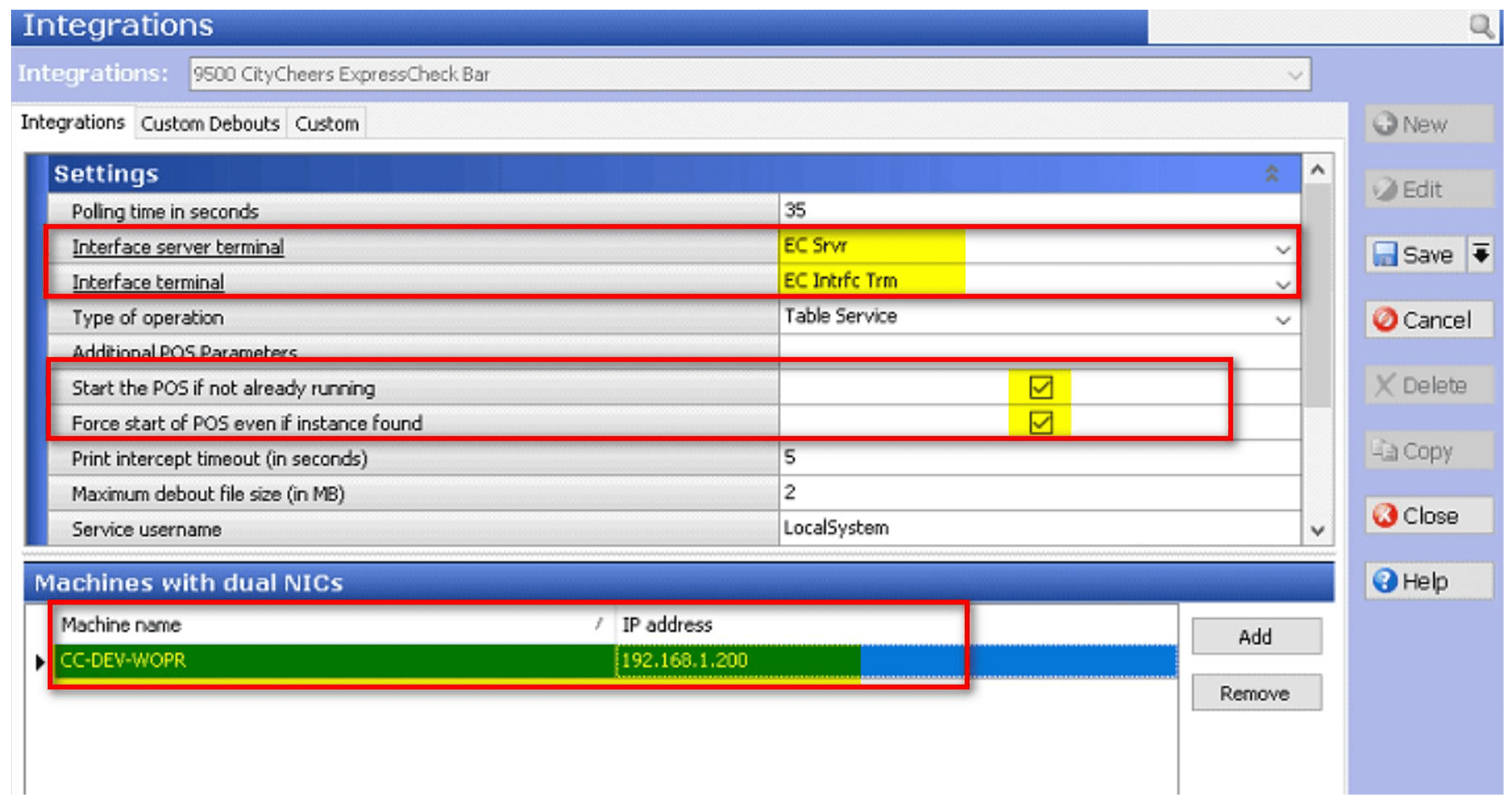
C. Go to Maintenance > System Settings > Integrations
1. If nothing displays Select New
i. Interface Server Terminal: EC Server (Interface Server programmed)
ii. Interface Terminal: EC Intrfc Trm (Interface Terminal programmed)
iii. Enable Start the POS if not already running iv. Enable Force Start of POS even if instance found
2. If Dual NIC Select Add
i. Fill out Computer Name
ii. Place IP Address of POS Network for Aloha Server
3. Click Save & Close
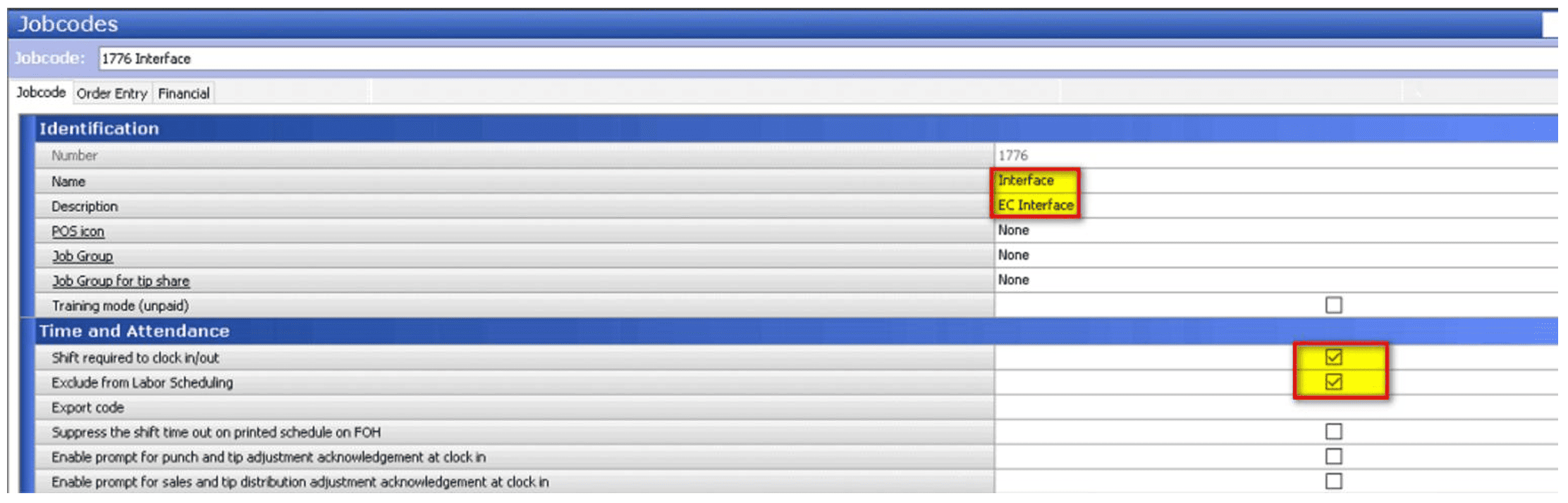
D. Go to Maintenance > Labor > Jobcodes
1. New Job Code
i. Set ID Number
ii. Name: Interface
iii. Description: EC Interface
iv. Enable: Shift required to clock in/out
v. Enable: Exclude from Labor Scheduling
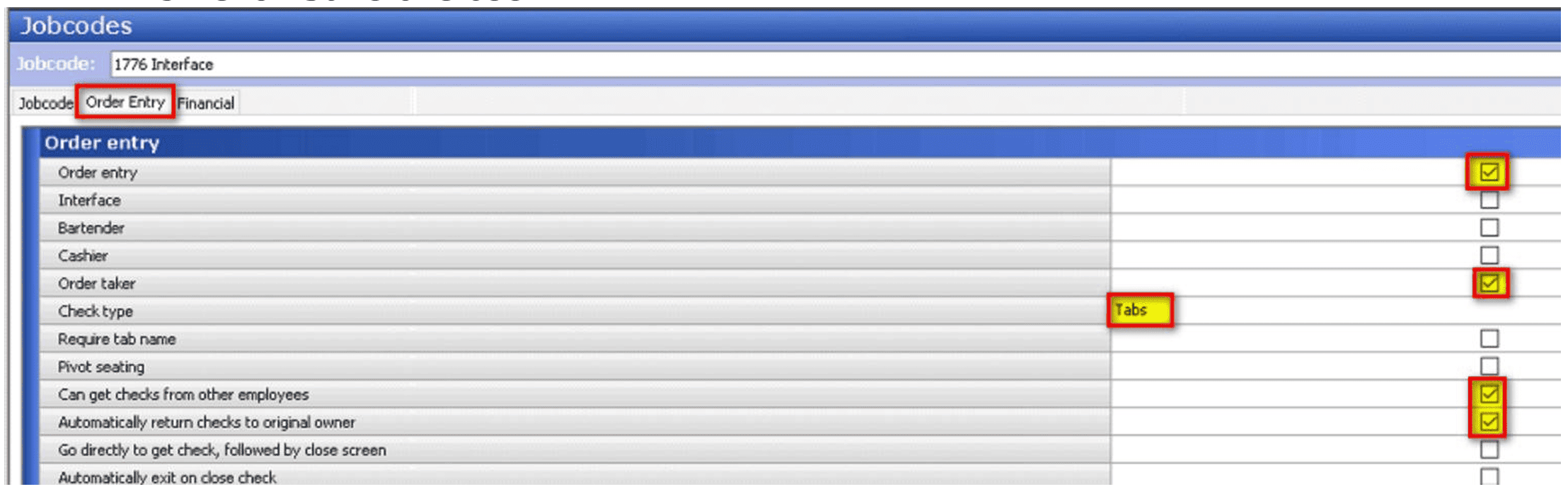
2. Order Entry Tab
i. Enable: Order Entry
ii. Enable: Order Taker
iii. Check Type: Tabs
iv. Enable: Can get checks from other employees
v. Enable: Automatically return checks to original owner
3. Click Save & Close
E. Go to Maintenance > Labor > Employees
1. New
i. POS Employee Number: Set Number
ii. SSN: 000000000
iii. Last Name: Check
iv. First Name: Express
v. Nick Name: ExpressCheck
2. Job Code Tab
i. Add Job Code: Interface
ii. Access Level: Manager
3. Click Save & Close
F. Go to Maintenance > System Settings > Table Definition
1. New
i. Number: 900
ii. Description: ExpressCheck
iii. Alternate Name: 900
iv. Save
v. Repeate for how many Terminals venue has 900 to 9XX Save & Close
G. Go to Maintenance > Screen Designer > Table Service Screen Designer
1. Select Work With Panels
i. Got To Panel > Open Panel
ii. Locate Floor Plan
iii. Create New Button and Move into open area
iv. Go down to Function and Choose Custom Activity
v. Set Custom Text: CityCheers.Open vi. Text: Clear text from field
vii. Background Color: Custom
(Set the Color to Black or a color that the png file will be easy to be displayed)
viii. Resize the Button accordingly
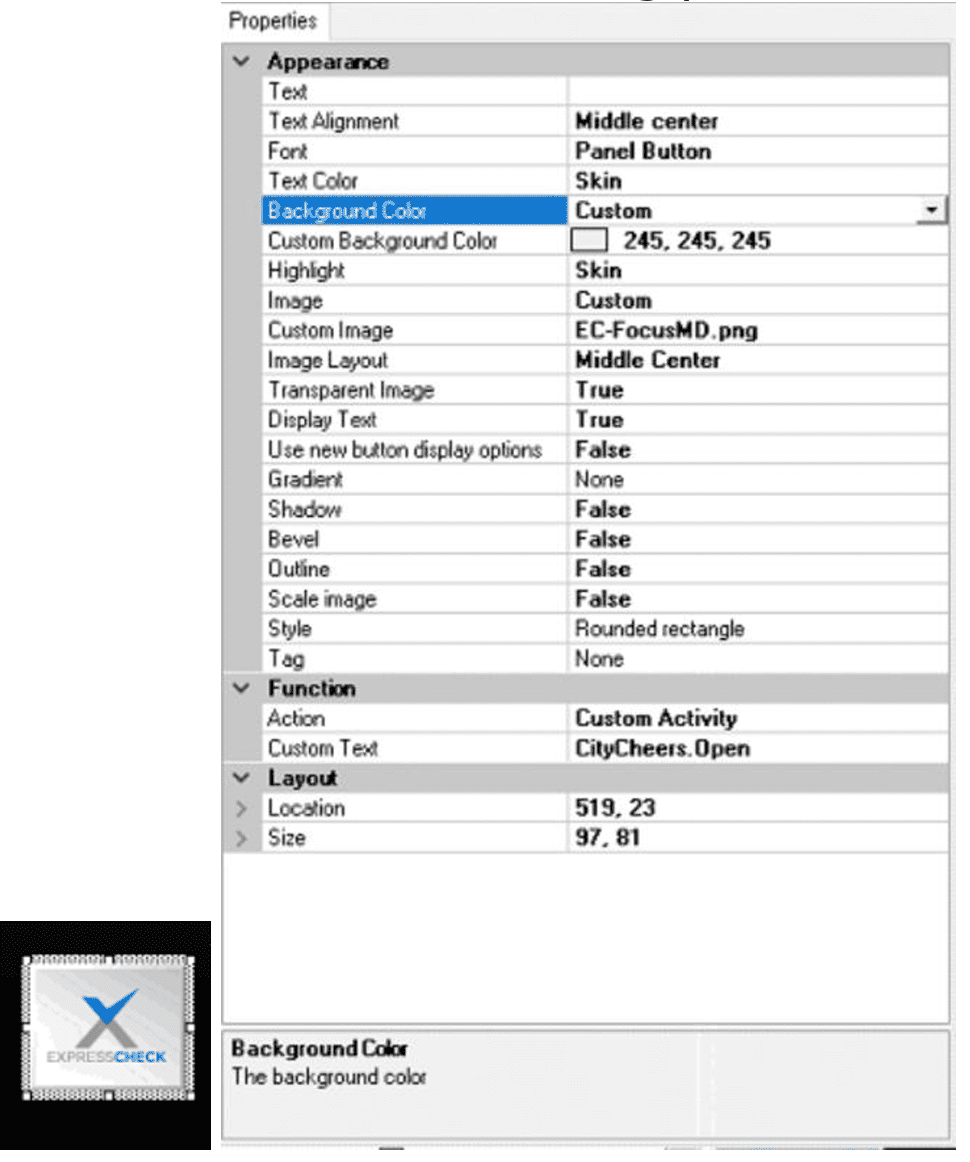
ix. Go to Panel > Save Panel then Close Panel
2. Goto Panel > Open Panel
i. Locate Order Entry Panel
ii. Resize buttons to fit additonal button to screen or create new panel
1. If new panel goto Panel > New Panel Grid
2. Set Columns = 8 Revision 2.2- 04/25/2025
3. Rows = 1
4. Number of Buttons = 8
5. Reszie Grid to fit bar
6. Right Click on Grid > Fill Grid with Buttons
7. Add all buttons that were on the POS screen
8. Add button Custom Activity
a. Custom Text: CityCheers.OpenCurrentCheck
b. Text: Express\nCheck
c. Set background color to Custom
d. Choose Custom Color

e. Save All Panels
3 Installing ExpressCheck & CityCheers Plugin for Aloha
1. Install Aloha.CityCheersSetup.msi On Aloha File Server
a. Confirm C:\BootDrv\Aloha\EXTDATA\CityCheers is there and files are within the folder
2. If Closed Refresh Data for everything to be pushed for current day
a. Go to Utilities > POS > Refresh POS Data
i. Automatically Restart POS Terminals
ii. Terminals will Sync with Ral and register the plugin on both the FOH and BOH
3. Install ExpressCheck.exe
a. Download ExpressCheck Installer ExpressCheck.exe
b. If Windows 10 run as Administrator
i. On Aloha File Server Expand ExpressCheck
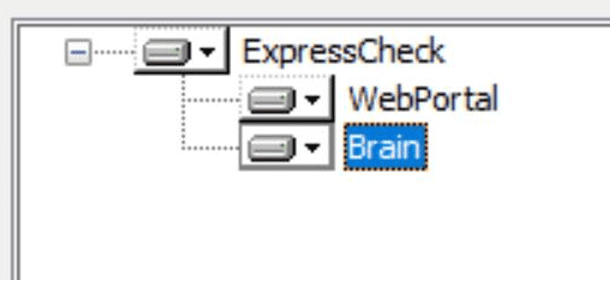
ii. Choose Workstation & Brain
iii. Click Next
iv. Enter User Name and Password Supplied by CityCheers Team
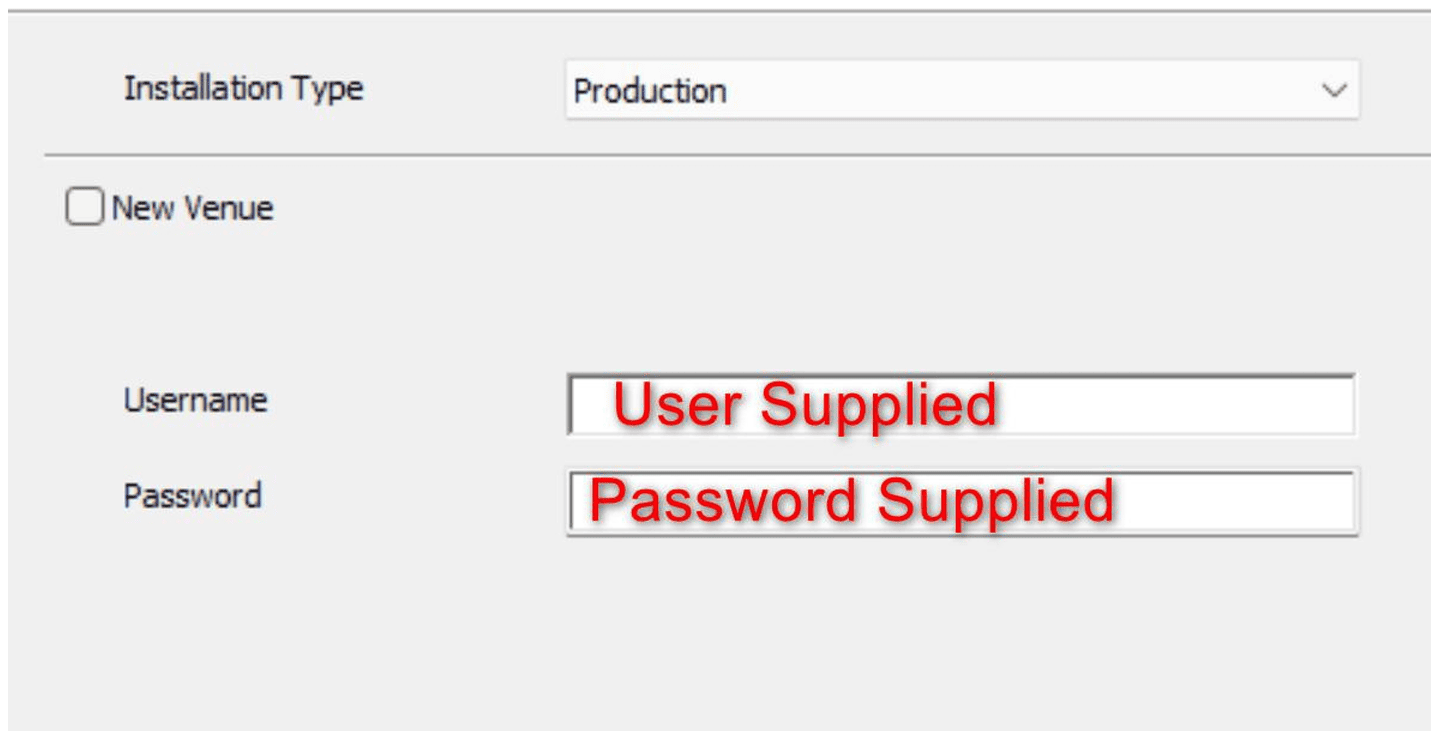
v. Follow the Prompts until Completion of Install
vi. Portal will Launch go ahead and use the same User Name and Password Supplied to login the portal.
c. On Terminals Use Administrator Account and run as admin
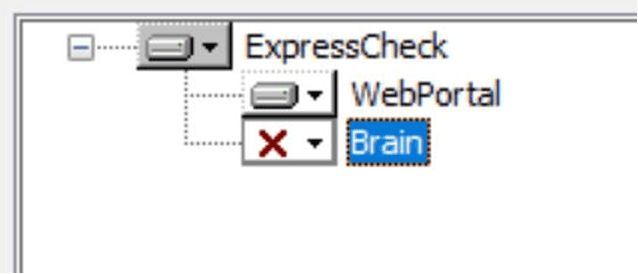
i. Install Only WebPortal
ii. Enter User Name and Password
iii. Follow the prompts until Completion of Install
iv. Portal will Launch again and use the same User Name and Password for Portal Login