

ExpressCheck Installation Guide - Base Setup
Version 2.01 – November 06, 2025

1 Prerequisites
The following are the prerequisites for installing ExpressCheck:
- .NET 4.6.2 or Higher
- Windows 7 POS Ready 2009 or Higher
- Server and all Workstations/Terminals with Internet Access (Recommended)
2 Configure the POS features
Follow the procedures in the POS-Specific Installation Guide to configure the POS system before installing the software. As soon as the software is installed, it will activate and use the settings configured on the POS in this step.
3 Install ExpressCheck software
Download or copy the ExpressCheck installer to the desktop.
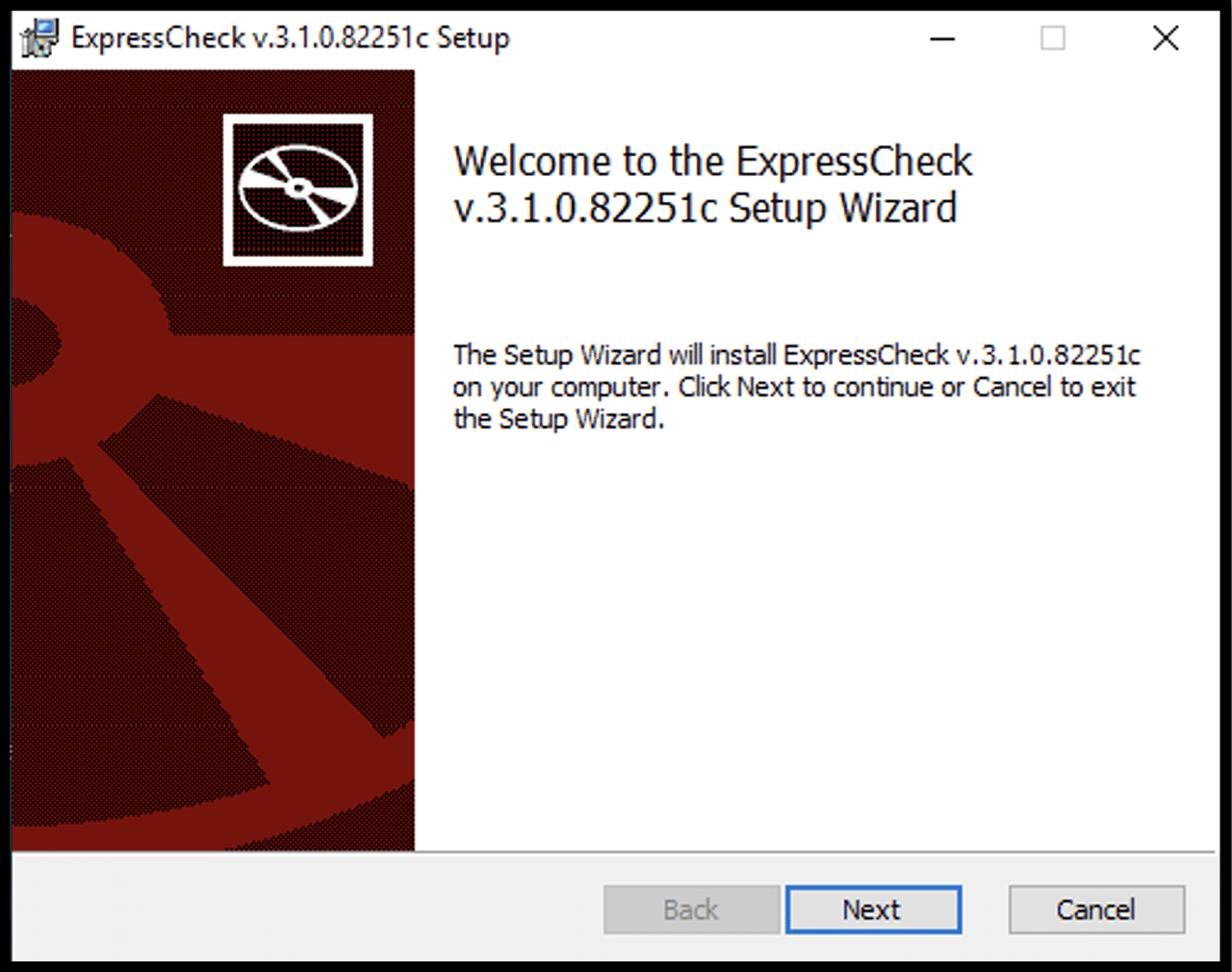
Once on the desktop, double-click the installer to launch it. Agree to the Terms, then click “Next":
If the system you are installing this software on is used only as a POS terminal, then click “Next” and skip to Step 4.
If this system is running the POS backoffice or main server software for the POS, then the ExpressCheck Lightweight Brain should be installed from Step 3. Note: This should only be done on one server per location.
4 Installing the ExpressCheck Lightweight Brain
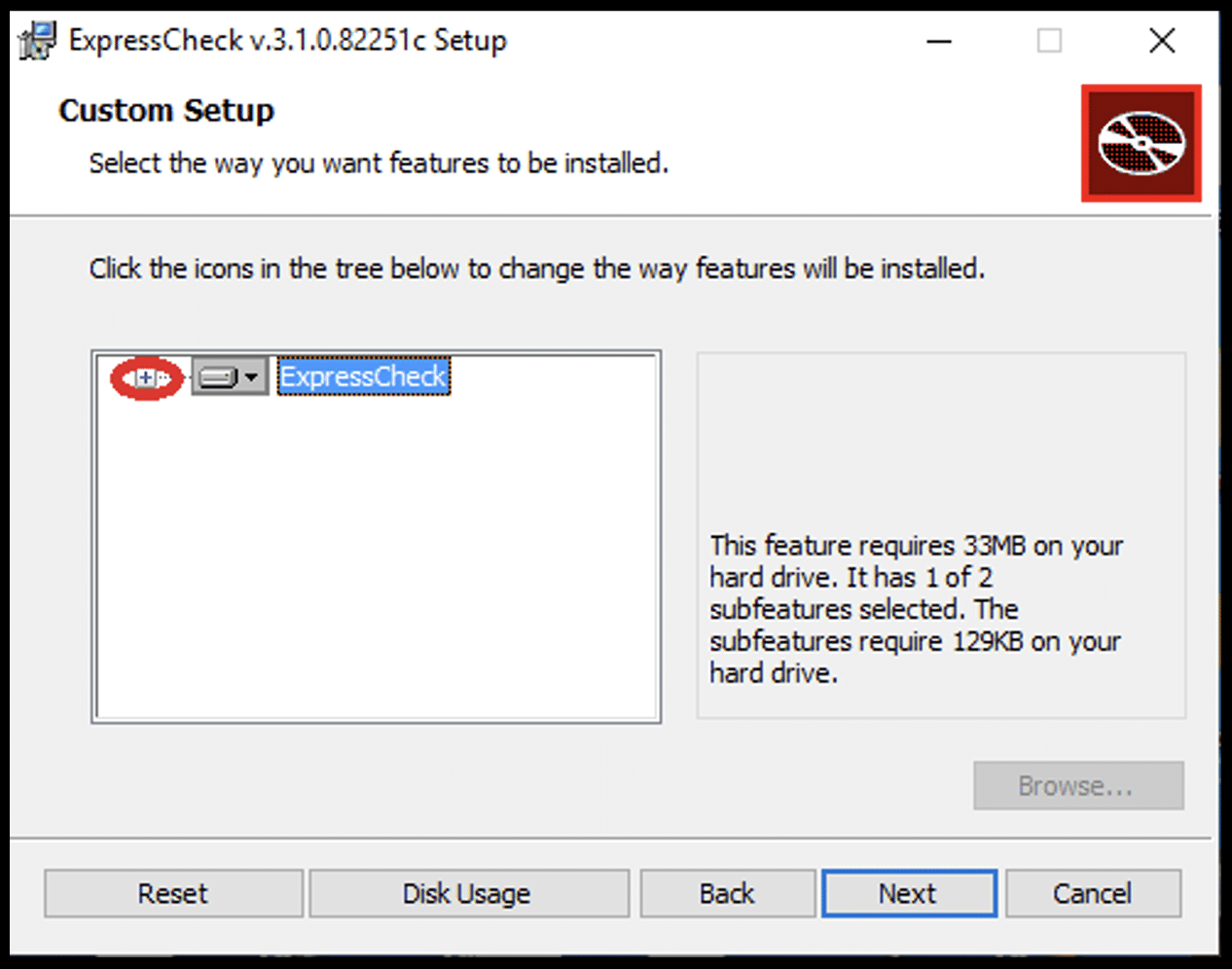
In the “Custom Setup” dialog box, click The "+" on the left side of the dialog box to expand the dropdown menu for “ExpressCheck”.
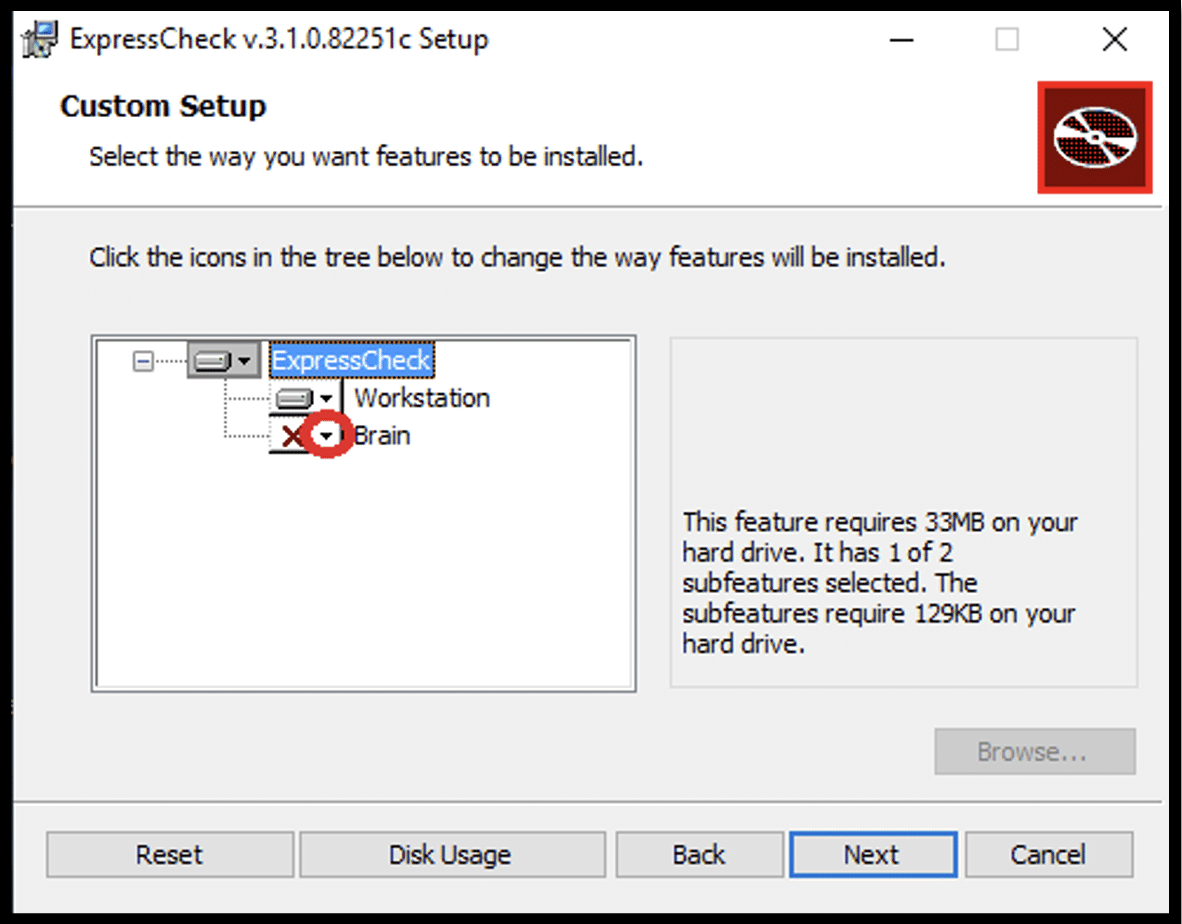
Then, click the drop-down arrow on “brain”:
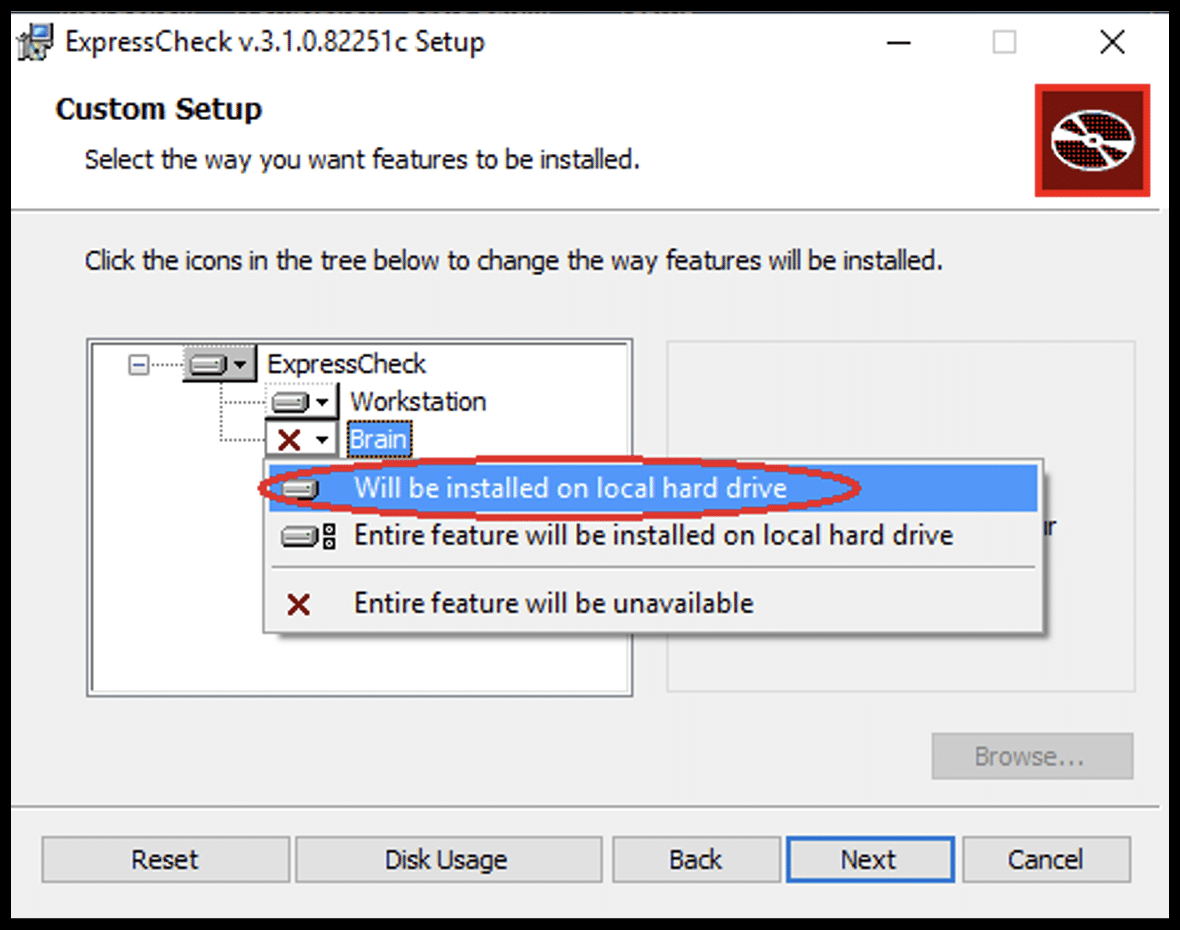
Click "Will be installed on local hard drive”, then click “Next”.
5 Select the Installation Type
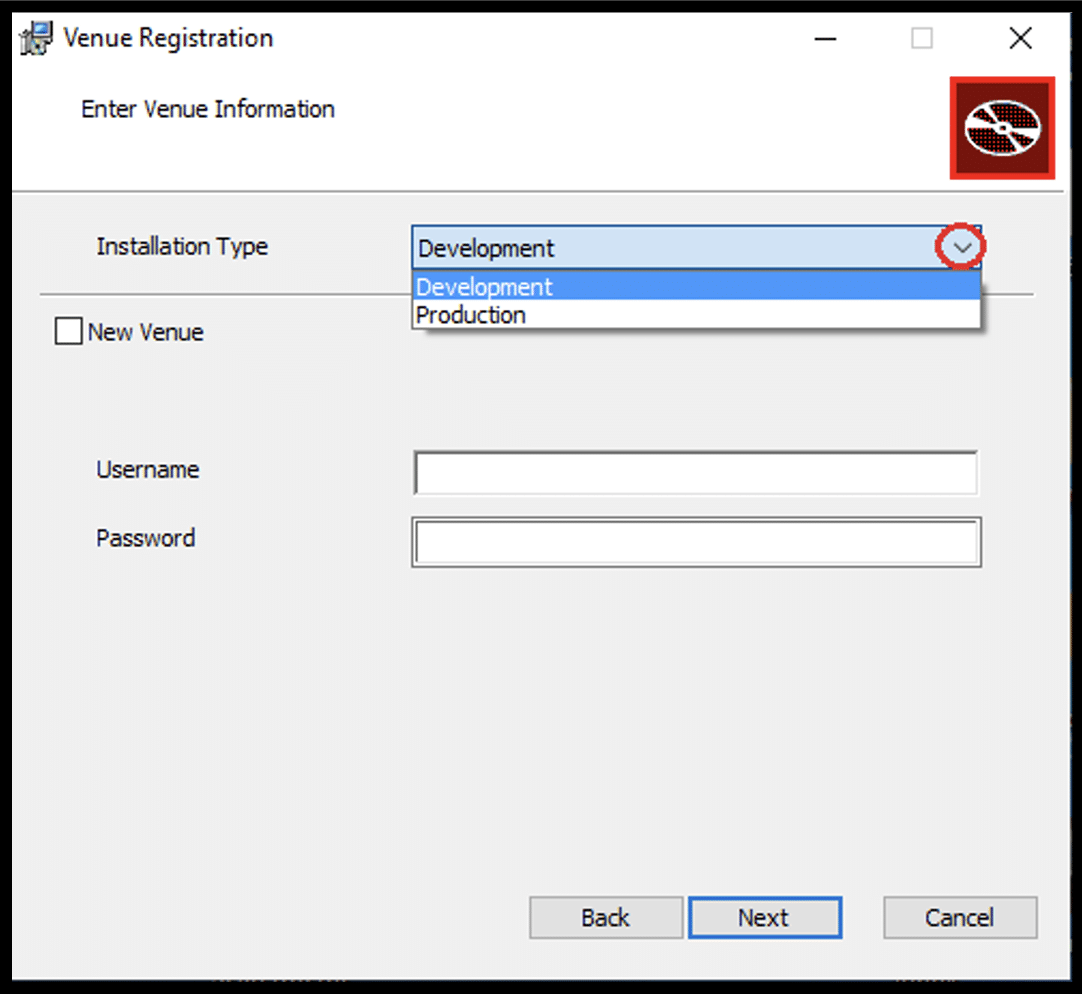
When the “Venue Registration” dialog is displayed, click on the drop down selection for the “Installation Type” and select “Production”. (“Development” should only be used by CityCheers staff, for testing purpose)
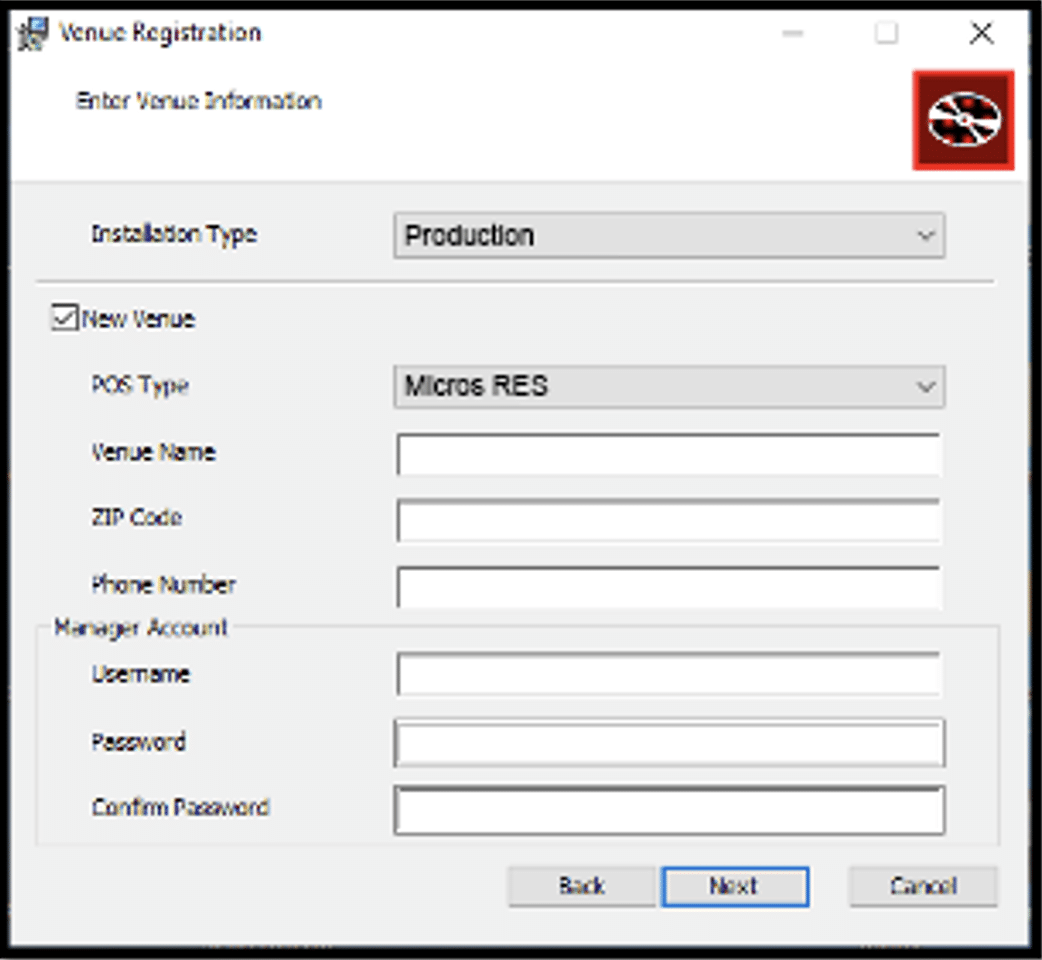
If this is the first time installing ExpressCheck for your venue, then check the “New Venue” check box and enter the Venue information in the “Venue Registration” page and the “Username and Password” from the credentials e-mail you should have received when your venue was ready for activation:
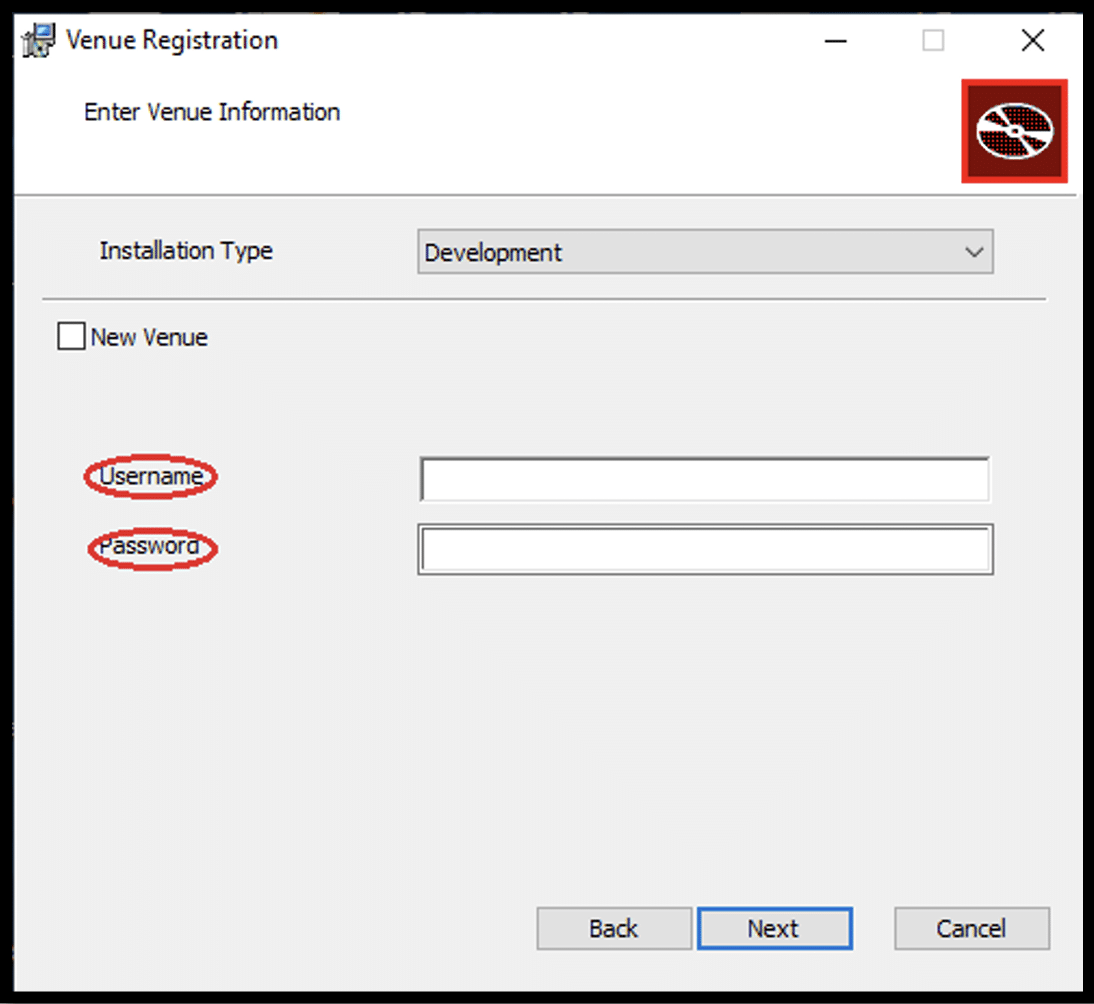
If ExpressCheck has already been installed for the venue before, then do not check the “New Venue” button and just enter the “Username and Password” and then click “Next”.
6 Complete the Installation
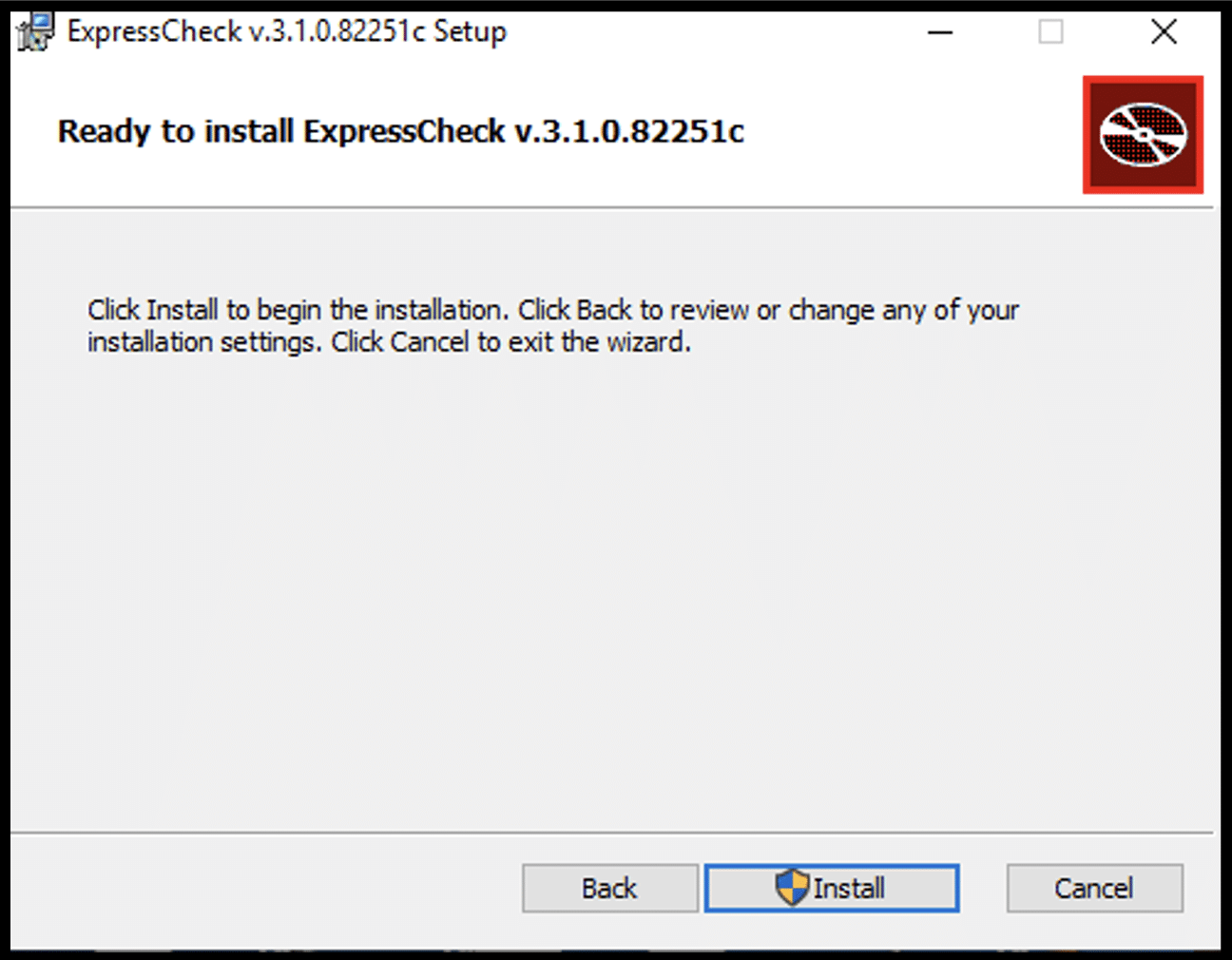
Click “Install” and the rest of the installation will complete automatically. When the installation is finished, click “Finish”.
7 Add Button to POS Ordering Screens
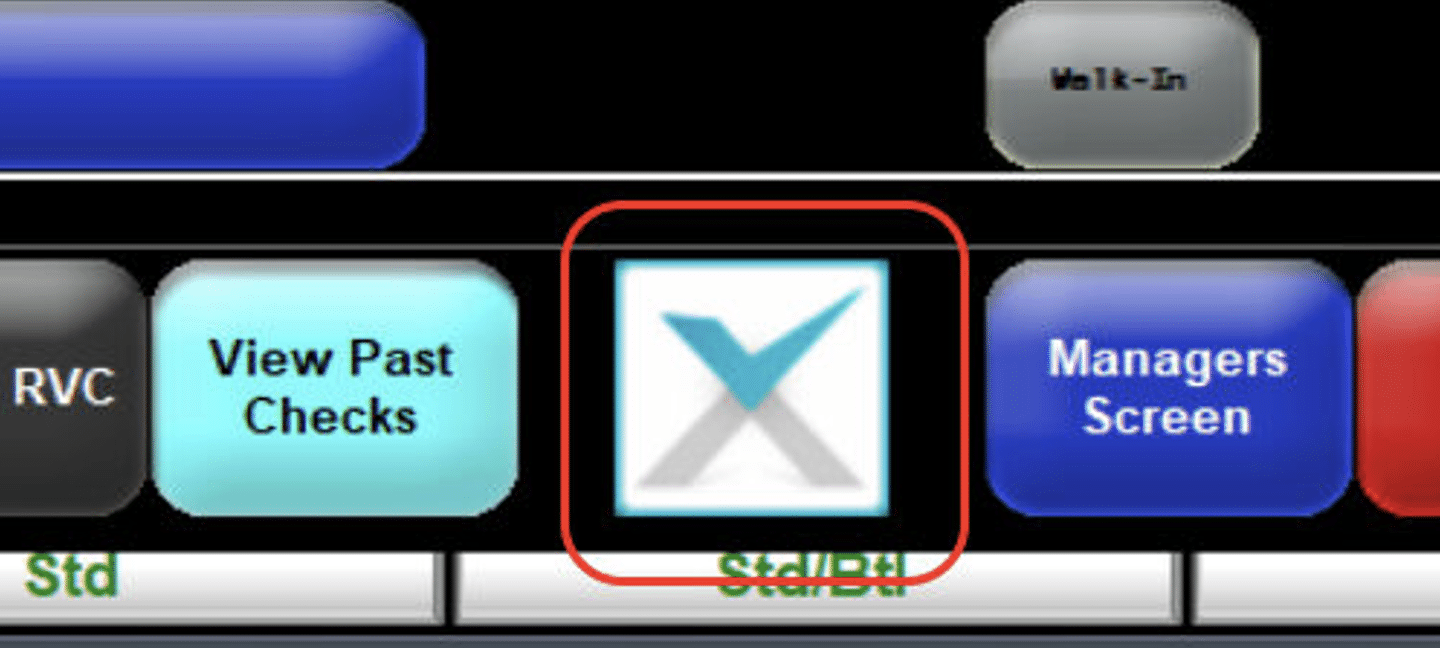
Once the software is installed, there will be various images that can be used to place on a button for activating ExpressCheck. Button images will be in the ExpressCheck Program folder (specified during installation) “c:Program Files (x86)CityCheersMediaExpressCheck”. Refer to the POS-specific installation guide for the instructions on how to configure the button for a specific POS type. Here is an example:
8 Installing ExpressCheck WebPortal on Terminals
Repeat the software installation steps 2-6, skipping step 3, for any remaining terminal systems that will be used to assign tickets to ExpressCheck patrons.
9 Configure Firewall Whitelist
The following ports should be allowed through the firewall as outbound connections (all using port 443):
208.83.78.41 (www.vigilix.net)
208.83.78.43 (agent.vigilix.net)
208.87.85.52 (download.vigilix.net) 208.87.85.53 (initialdownload.vigilix.net) 208.83.78.45 (rc.vigilix.net) SC Gateway - Primary
208.83.78.46 (rc2.vigilix.net) SC Gateway 52.165.31.120 (rcia.vigilix.net) Iowa Gateway 52.88.11.253 (rcor.vigilix.net) Oregon Gateway 18.211.25.51 (rcva.vigilix.net) Virginia Gateway xupdatesprod.blob.core.windows.net citycheers.blob.core.windows.net
x-portal.citycheers.com
x-uapi.citycheers.com
x-cloud-brain.citycheers.com
signalr.net jsdelivr.net